Add or edit a server
Use Server Admin to tell UltraStats where a game server log lives and whether that server should appear in the public stats.
Open the server form
- Sign in to the Admin Center.
- Open Server Admin.
- Click Add Server to create a new row, or use the edit icon on an existing server.
For the Docker demo, you can inspect the seeded Dev CoD4 (normal) and Dev CoD4 (HQ new) rows instead of saving a new server.
Required fields
The important fields are:
| Field | Demo value | Notes |
|---|---|---|
| Servername | Demo Docs Server |
Display name in UltraStats. |
| Server IP | 127.0.0.1 |
Informational for the local demo. |
| Server Port | 0 |
The demo seed also uses 0. Use the real game port for live servers. |
| GameLogLocation | gamelogs/cod4_normal.log |
Path readable by the web server, relative to the deployed UltraStats app root. |
| Server Enabled | checked | Shows the server in the public UI. |
| ParsingEnabled | checked | Allows parser operations for the server. |
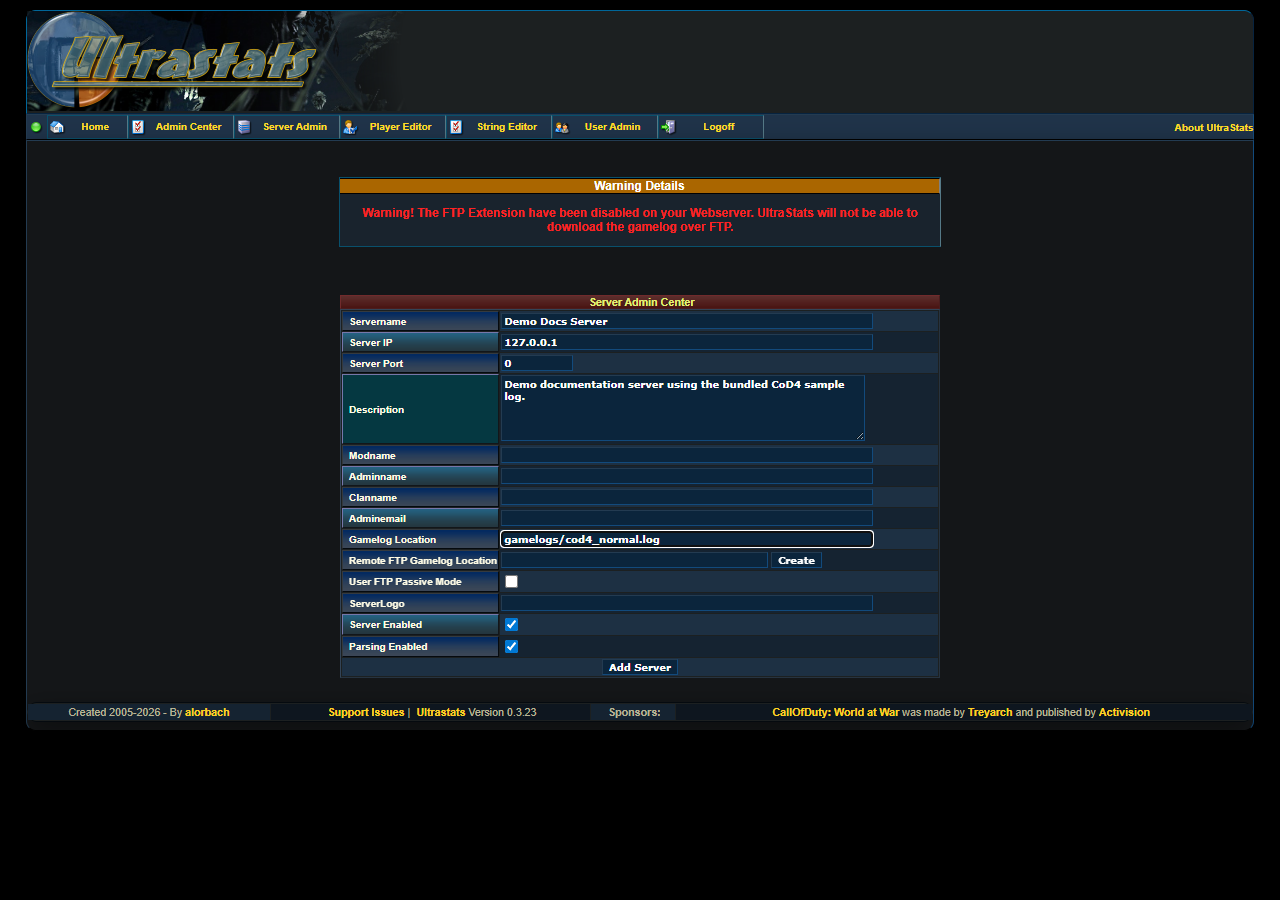
Local paths and FTP
For local Docker, the repository's src/ directory is mounted as the web root, so files under src/gamelogs/ are entered in the form as gamelogs/.... For a production install, users normally upload only the contents of src/; the path still starts from that deployed app root, not from the repository root.
If the web server must download the log from a remote game server, fill Remote GameLogLocation or use the FTP builder after the server exists. Local demo parsing does not require FTP.
Save and return
After saving, UltraStats returns to the server list. The new row should expose the same action icons as the seeded demo rows: edit, delete, Run Parser, create aliases, Server DB Statistics, reset last logline, delete stats, and get new logfile.
Continue with Process gamelogs and check results.